Monday, May 18, 2015

Setting up Mac OSx for Foundation5

Foundation is an open source responsive front end framework maintained by zurb.com. It has a seemingly endless list of features that allows you to build responsive web applications within no time. In this post, we will set up our Mac OSx for developing foundation projects.

For foundation you need the following packages to be installed on your system. The following steps assumes the presence of homebrew on your system. If you do not have homebrew installed, please install it. The instructions are available on homebrew website.

Git


Git is version control system that basically commands the tools that will be used for command line in Github.

$ brew doctor
$ brew update
$ brew install git

NodeJs


NodeJs allows Javascript to run outside the Browser, and is required by Bower to package all the files in the project and link them together.

$ brew doctor
$ brew update
$ brew install node

Ruby 1.9+


The script used by Foundation to download all Sass files and scaffolding the project is written in Ruby.

$ brew doctor
$ brew update
$ brew install ruby

Installing the foundation CLI


$ gem install foundation
$ npm install -g bower grunt-cli
g stands for global

That's it, you have got foundation installed on your system. Now let's create a new foundation project.

Creating a new Foundation project


$ foundation new myproject
Creating ./myproject
      create  myproject
Cloning into 'myproject'...
remote: Counting objects: 120, done.
remote: Total 120 (delta 0), reused 0 (delta 0), pack-reused 120
Receiving objects: 100% (120/120), 40.77 KiB | 0 bytes/s, done.
Resolving deltas: 100% (48/48), done.
Checking connectivity... done.
Installing dependencies with bower...
./myproject was created

That's all that has to be done for you to start building foundation 5 projects.

Compiling Sass into CSS


This section takes you through the steps for creating a Sass project. Sass stands for Sassy CSS. It builds on the existing CSS syntax.

$gem install compass

After this you can create a new Foundation Sass project.

Reference : Zurb Foundation Documentation

Monday, March 30, 2015

Mastering Diff and patch

Diff and patch are essential if you are working on a large project with multiple contributors. They are a boon for programmers distributed across the globe and wanting to work on a single project.

These tools are present by default on a linux or Unix based operating system.

Diffing individual file


$diff -u originalFile modifiedFile > output.patch
This creates a file `output.patch` containing the diff of the two files, i.e. the original file and the modified file.

Diffing entire directories


$ diff -ur originalDirectory modifiedDirectory > output.patch
This creates a patch file containing all the modifications

Applying a patch to an individual file


When you say you are applying a patch to a file, you are basically applying a diff to an original file.
$ patch -p < patchFile
The diff file and the original file should be in the same directory.

Patching entire directories


cd to the parent directory of the directory to which patch has to be applied.
$patch -p1 < patchFile
The number 1 basically says that the number of directories to be ignored while applying the patch is 1.

Sunday, March 29, 2015

Archives using TAR

If you are running a Linux Distribution, a Mac OS X or other Unix-like operating system, your system certainly has the tar program on it already.You can see the tar manual by typing '$man tar'.

Unpacking a tarball


To unpack a tarball, use
$ tar xvf <tarball>

The x stands for extract.
The v stands for verbose output
The f stands for filename of archive

To uncompress a gzip compressed tar, use option z in addition to the above
$ tar xvzf <tarball>

The z stands for uncompress a gzip archive

To uncompress a bzip2 compressed tar, use option j instead of z
$ tar xvjf <tarball>

Creating a tarball


To create a tar archive,use
$ tar cvf <tarball name> <file/directory to be archived>

The c stands for create archive
The v stands for verbose list files which have been processed
The f stands for filename of archive

To create a compressed archive, use
$ tar cvzf <tarball name> <file/directory to be archived>

This creates a gzip compressed archive

In order to create a bzip2 compressed archive, use option j.
$ tar cvjf <tarball name> <file/directory to be archived>

In order to add a file or directory to an existing archive, use the following:
$ tar rvf <tarball name> <file/directory to be added>

** however, you cannot add a file or directory to a compressed archive.

Listing an archive

The tar content can be viewed before extracting by using the following command
$ tar tvf <tarball>


Similar to above two cases, for a compressed archive you can use the options 'j' or 'z' depending on the type of compression.

Extract a single file

To extract a single file from the archive, you can specify the name of the file at the end of extract command
tar xvf <tarball> <path to file>

Instead of a file, if we specify a directory, the directory will be extracted from the path.
We can also specify multiple files/directories for extraction.
Wildcards can also be used for extracting files matching a specific pattern


Reference: Open Hatch Tar quick reference

Monday, March 23, 2015

Prepending a set of lines with Vim

Have you ever faced a situation where you just wanted to have a set of characters prepended to a set of lines in one of your files, and wished that there was an easy way to do it. Well Vim comes to your rescue. It gives you a very simple way of doing this.

1. Use Ctrl+V to select the first column of text in the lines you want to comment.
2. Then hit Shift+i and type the text you want to insert.
3. Then hit Esc, wait 1 second and the inserted text will appear on every line.

This is one of the requirements for which I use Vim extensively. Hope, it helps others out there.

Reference: http://stackoverflow.com/questions/1174274/how-can-i-prepend-text-to-multiple-lines-in-vim

Saturday, March 21, 2015

Say Hello to Android - Your very first Android App

For installation instruction follow my post on Android App development on a Mac. This post is written with an android studio version 1.0.1.

Open Android Studio. Create a New Project.


In the project Wizard, set up the App name to be HelloWorld. Then provide a package name. Remember that the package name should be globally unique across all packages installed on Android. Next, choose your project location and hit next.

Now you have to choose the minimum SDK version.

There is also something known as Target SDK. The Android Studio automatically sets the target SDK for you to the latest Android version. However, in order to develop an Android App, its important for you to know the difference between the two.
The Min SDK acts as your low pass filter. The Google Play wont show your app on a device running a lower version than your Min SDK. However, the target SDK does not act as a high pass filter. This only declares which platform, your app has been tested on.

Next, we have to choose an Activity. We choose a Blank Activity with Fragment. An activity serves as a presentation layer for the UI and a fragment represents a behavior or portion of the screen.

Next, we have the option to modify the names of the files auto-generated from the Wizard.

The layout will come from activity_main, which is an XML file. Similary, the fragments layout will come from fragment_main which is also an XMl file. When you click on Finish, you will see the project structure as seen in the screenshot below.

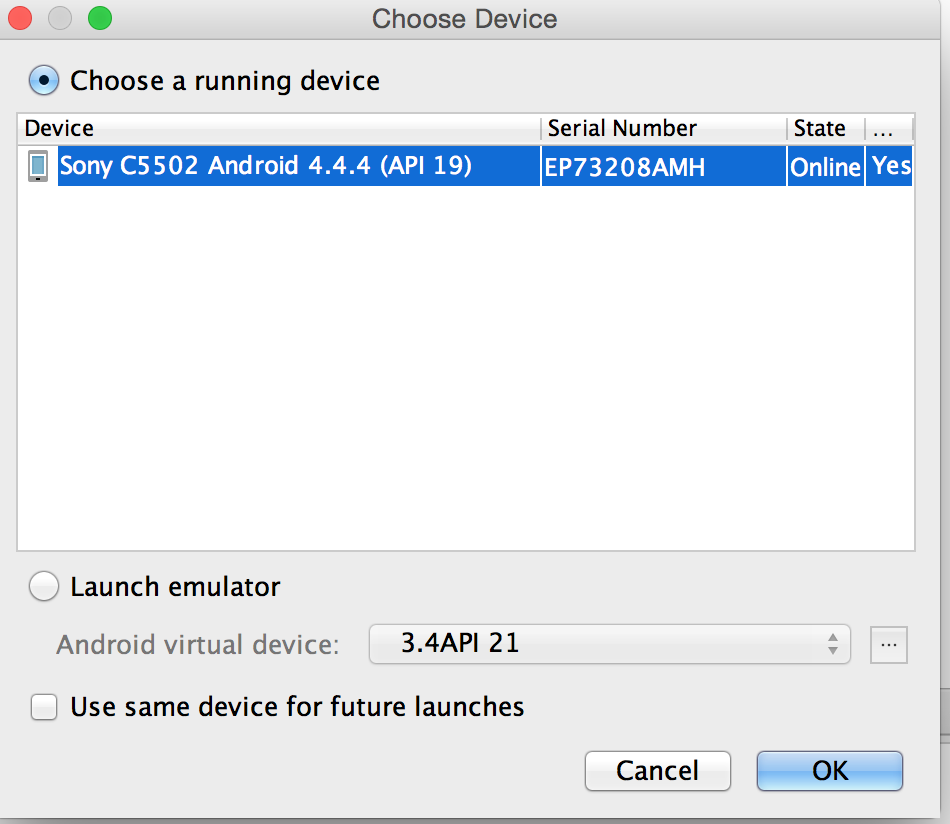
Make sure that your Android device is connected via USB and USB debugging is enabled on device. Hit run for the project in Android Studio

Congratulations!!! You have your HelloWorld App running on your device.

Sunday, March 1, 2015

Android App development on a Mac

I started with Android development yesterday, and getting to run the Android App on my phone took some struggle. I hope that this post helps the naive android developers to get started with building their first App.
OSx version : Yosemite 10.10.1

For developing an Android App, you need the following to be installed.

Install Java


First check whether Java is installed or not. On your terminal, type
$java -version
If you have Java 6.0 or above, you can skip to setting JAVA_HOME, else please download JAVA SDK from Java install page

Now set JAVA_HOME in your ~/.bash_profile to following:
export JAVA_HOME=$(/usr/libexec/java_home)
export JDK_HOME=$(/usr/libexec/java_home)

On the terminal window, type the following command:
$ source ~/.bash_profile

Install Android Studio


Get started by downloading Android Developer Studio. You can get this from the Android Developers Site.
After setting up Android Studio as per the instruction given on the site, you can get started by developing your first Android project.

Setting up USB debugging on your Android device


Plug in your device to your Mac and then enable USB debugging on your phone. This can be found in Developer Options on your android phone. Note that, the developer options is hidden by default on Android devices with version 4.2 and above.

To find the secret menu, click on settings App. Scroll down to About Phone.

Then go down to Build Number and tap on that 7 times.

Then when you go back to settings, you will see the developer options menu appear.

Enable USB debugging on device.

Getting you Mac to detect your Android device


Ideally, your Mac should detect your phone by default. However, for some reason, this may not happen. Follow the following steps to make your Mac detect your phone.

1. Make sure that adb(Android Developer Bridge) is included in your path. The default location for adb is:
~/Library/Android/sdk/platform-tools/

2. Include the following line in your .bash_profile.
export PATH=/usr/local/sbin:$PATH:~/Library/Android/sdk/platform-tools/

3. On the terminal window, type the following command:
$ source ~/.bash_profile

4. Next add the Vendor ID to ~/.android/adb_usb.ini. But first you have to find the Vendor ID value. You can do this from the System Information Application. Fortunately on Mac this is pretty easy. Launch the System Information application.
From the Hardware Menu in the left pane -> Select USB -> In the right pane, you will see the list of USB devices, select your phone from it -> In the lower pane on the right, you will see the vendor id. Copy this vendor id to the file ~/.android/adb_usb.ini

5. Restart adb
$ adb kill-server
$ adb devices

The device should be listed.

Thats it, you are all set for developing android apps and testing them on your mobile

Thursday, January 1, 2015

Gearing up for Learning Scala

Scala, an acronym for Scalable language is defined by Wikipedia as an object-functional programming language. This post will be an introduction to setting up your environment for scala development and writing a hello world program in scala. We will deep-dive into the concepts of scala in later posts.

Installation


1. You should have JDK6 or JDK7 installed.
2. For installing scala build tool (sbt) on OSx, you can use the following steps
$brew update
$brew install sbt
3. Download the scala IDE for Eclipse. After downloading the archive for your operating system, unpack it and start eclipse.

Building your Scala Hello World program


1. Go to File --> New --> Scala Project.

2. Choose a Project name and Select Finish.

3. Select File --> New --> Scala Object to create a new object.

4. Enter Hello as the name of the object and greeter as the package name.

5. Change the source code as below:
package greeter

object Hello extends App{
  println("Hello, World!")
}

6. Save the file and select Run - Run from the menu. Chose to run as Scala Application.

7. You can see the output in the console: