Tuesday, July 28, 2015

Immutability in Java - What it takes to build an immutable class


Immutability means something that cannot be changed. In java an immutable class is one whose state cannot be changed once it has been created. This post aims to give a guideline on how to make a class immutable. The post contains an example of creating an immutable class.
The complete code is available on Github

The Java documentation gives a list of guidelines for creating an immutable class. We will try to understand it better.

To make a class immutable, follow the following steps:
  1. Declare the class as final. 
  2. Make all its fields final and private.
  3. For all mutable fields, make sure that the class creates a copy and only returns the copy to the calling code.
  4. Do not provide any setter methods.

Let's try to understand why we need to do all of the above for making a class immutable. We need to ensure that the subclasses do not override any of the class methods. Declaring the class as final ensures that the class cannot be overridden. A more sophisticated approach is to make the constructor private and use a factory method to create an instance of the class. Making all the fields private will ensure that the fields cannot be changed outside the class, and making them final will ensure that we do not alter the field even by mistake. For all the mutable fields, we are making sure that no other object from outside can change the data by creating a defensive copy of the object and only returning this copy to the calling code. Setter methods are usually used to change the state of the object and as the goal of an immutable class is to avoid state changes, hence we do not provide any setter methods.

Lets look at an example of Immutable class:


We have three fields in the class, first field of Integer type, second field of String type, and third field of Date type. The String and Integer classes are immutable, however the Date class is mutable. Thus, we create a new Date object when assigning the Date to the class field.
That's all for immutability.


Reference: Java Documentation

Tuesday, July 14, 2015

Getting Started with TestNG

TestNG is a testing framework which, inspired by JUnit and NUnit, but introduces things like dependency testing, grouping concept to make testing more powerful and easier to do. It is designed to cover all categories of tests: unit, functional, end-to-end, integration, etc...
The NG in TestNG stands for Next Generation. TestNG requires JDK7 or higher.
Reference: http://testng.org/doc/index.html

In this post, we will be discussing how to use TestNG to write a simple test:

Firstly, add the TestNG library in the pom.xml


Lets create a simple Java class that has a method that returns the String passed to it.


Create a test case like this:


Thats it, a simple TestNG test case is created.


Monday, May 18, 2015

Setting up Mac OSx for Foundation5

Foundation is an open source responsive front end framework maintained by zurb.com. It has a seemingly endless list of features that allows you to build responsive web applications within no time. In this post, we will set up our Mac OSx for developing foundation projects.

For foundation you need the following packages to be installed on your system. The following steps assumes the presence of homebrew on your system. If you do not have homebrew installed, please install it. The instructions are available on homebrew website.

Git


Git is version control system that basically commands the tools that will be used for command line in Github.

$ brew doctor
$ brew update
$ brew install git

NodeJs


NodeJs allows Javascript to run outside the Browser, and is required by Bower to package all the files in the project and link them together.

$ brew doctor
$ brew update
$ brew install node

Ruby 1.9+


The script used by Foundation to download all Sass files and scaffolding the project is written in Ruby.

$ brew doctor
$ brew update
$ brew install ruby

Installing the foundation CLI


$ gem install foundation
$ npm install -g bower grunt-cli
g stands for global

That's it, you have got foundation installed on your system. Now let's create a new foundation project.

Creating a new Foundation project


$ foundation new myproject
Creating ./myproject
      create  myproject
Cloning into 'myproject'...
remote: Counting objects: 120, done.
remote: Total 120 (delta 0), reused 0 (delta 0), pack-reused 120
Receiving objects: 100% (120/120), 40.77 KiB | 0 bytes/s, done.
Resolving deltas: 100% (48/48), done.
Checking connectivity... done.
Installing dependencies with bower...
./myproject was created

That's all that has to be done for you to start building foundation 5 projects.

Compiling Sass into CSS


This section takes you through the steps for creating a Sass project. Sass stands for Sassy CSS. It builds on the existing CSS syntax.

$gem install compass

After this you can create a new Foundation Sass project.

Reference : Zurb Foundation Documentation

Monday, March 30, 2015

Mastering Diff and patch

Diff and patch are essential if you are working on a large project with multiple contributors. They are a boon for programmers distributed across the globe and wanting to work on a single project.

These tools are present by default on a linux or Unix based operating system.

Diffing individual file


$diff -u originalFile modifiedFile > output.patch
This creates a file `output.patch` containing the diff of the two files, i.e. the original file and the modified file.

Diffing entire directories


$ diff -ur originalDirectory modifiedDirectory > output.patch
This creates a patch file containing all the modifications

Applying a patch to an individual file


When you say you are applying a patch to a file, you are basically applying a diff to an original file.
$ patch -p < patchFile
The diff file and the original file should be in the same directory.

Patching entire directories


cd to the parent directory of the directory to which patch has to be applied.
$patch -p1 < patchFile
The number 1 basically says that the number of directories to be ignored while applying the patch is 1.

Sunday, March 29, 2015

Archives using TAR

If you are running a Linux Distribution, a Mac OS X or other Unix-like operating system, your system certainly has the tar program on it already.You can see the tar manual by typing '$man tar'.

Unpacking a tarball


To unpack a tarball, use
$ tar xvf <tarball>

The x stands for extract.
The v stands for verbose output
The f stands for filename of archive

To uncompress a gzip compressed tar, use option z in addition to the above
$ tar xvzf <tarball>

The z stands for uncompress a gzip archive

To uncompress a bzip2 compressed tar, use option j instead of z
$ tar xvjf <tarball>

Creating a tarball


To create a tar archive,use
$ tar cvf <tarball name> <file/directory to be archived>

The c stands for create archive
The v stands for verbose list files which have been processed
The f stands for filename of archive

To create a compressed archive, use
$ tar cvzf <tarball name> <file/directory to be archived>

This creates a gzip compressed archive

In order to create a bzip2 compressed archive, use option j.
$ tar cvjf <tarball name> <file/directory to be archived>

In order to add a file or directory to an existing archive, use the following:
$ tar rvf <tarball name> <file/directory to be added>

** however, you cannot add a file or directory to a compressed archive.

Listing an archive

The tar content can be viewed before extracting by using the following command
$ tar tvf <tarball>


Similar to above two cases, for a compressed archive you can use the options 'j' or 'z' depending on the type of compression.

Extract a single file

To extract a single file from the archive, you can specify the name of the file at the end of extract command
tar xvf <tarball> <path to file>

Instead of a file, if we specify a directory, the directory will be extracted from the path.
We can also specify multiple files/directories for extraction.
Wildcards can also be used for extracting files matching a specific pattern


Reference: Open Hatch Tar quick reference

Monday, March 23, 2015

Prepending a set of lines with Vim

Have you ever faced a situation where you just wanted to have a set of characters prepended to a set of lines in one of your files, and wished that there was an easy way to do it. Well Vim comes to your rescue. It gives you a very simple way of doing this.

1. Use Ctrl+V to select the first column of text in the lines you want to comment.
2. Then hit Shift+i and type the text you want to insert.
3. Then hit Esc, wait 1 second and the inserted text will appear on every line.

This is one of the requirements for which I use Vim extensively. Hope, it helps others out there.

Reference: http://stackoverflow.com/questions/1174274/how-can-i-prepend-text-to-multiple-lines-in-vim

Saturday, March 21, 2015

Say Hello to Android - Your very first Android App

For installation instruction follow my post on Android App development on a Mac. This post is written with an android studio version 1.0.1.

Open Android Studio. Create a New Project.


In the project Wizard, set up the App name to be HelloWorld. Then provide a package name. Remember that the package name should be globally unique across all packages installed on Android. Next, choose your project location and hit next.

Now you have to choose the minimum SDK version.

There is also something known as Target SDK. The Android Studio automatically sets the target SDK for you to the latest Android version. However, in order to develop an Android App, its important for you to know the difference between the two.
The Min SDK acts as your low pass filter. The Google Play wont show your app on a device running a lower version than your Min SDK. However, the target SDK does not act as a high pass filter. This only declares which platform, your app has been tested on.

Next, we have to choose an Activity. We choose a Blank Activity with Fragment. An activity serves as a presentation layer for the UI and a fragment represents a behavior or portion of the screen.

Next, we have the option to modify the names of the files auto-generated from the Wizard.

The layout will come from activity_main, which is an XML file. Similary, the fragments layout will come from fragment_main which is also an XMl file. When you click on Finish, you will see the project structure as seen in the screenshot below.

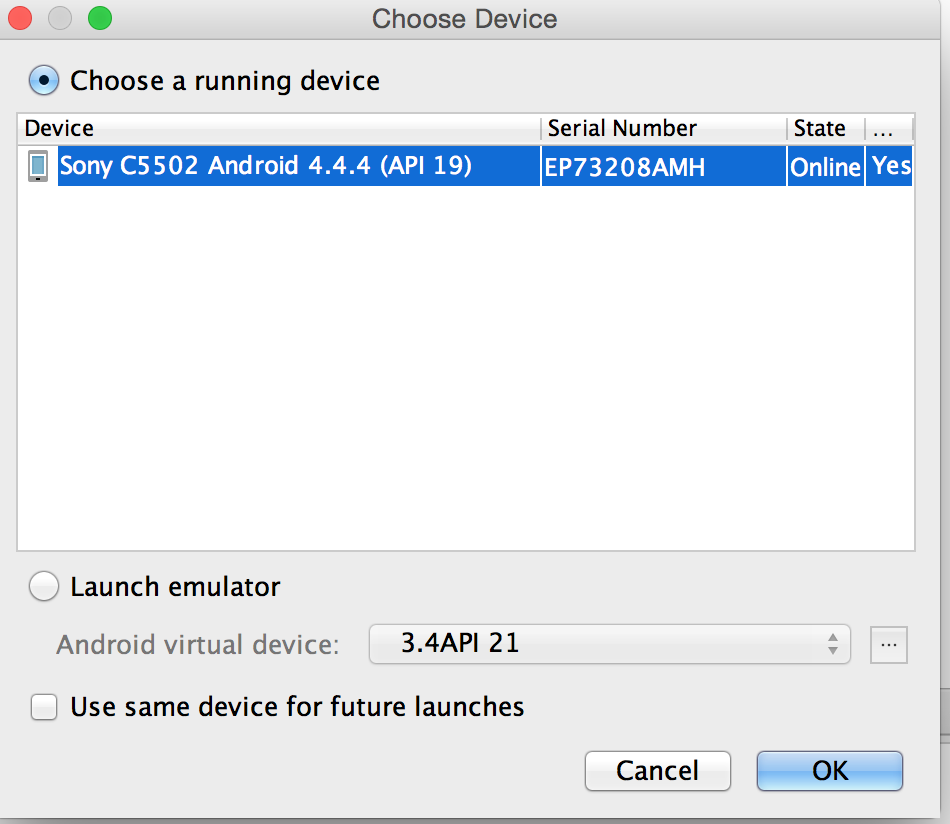
Make sure that your Android device is connected via USB and USB debugging is enabled on device. Hit run for the project in Android Studio

Congratulations!!! You have your HelloWorld App running on your device.